Alerts
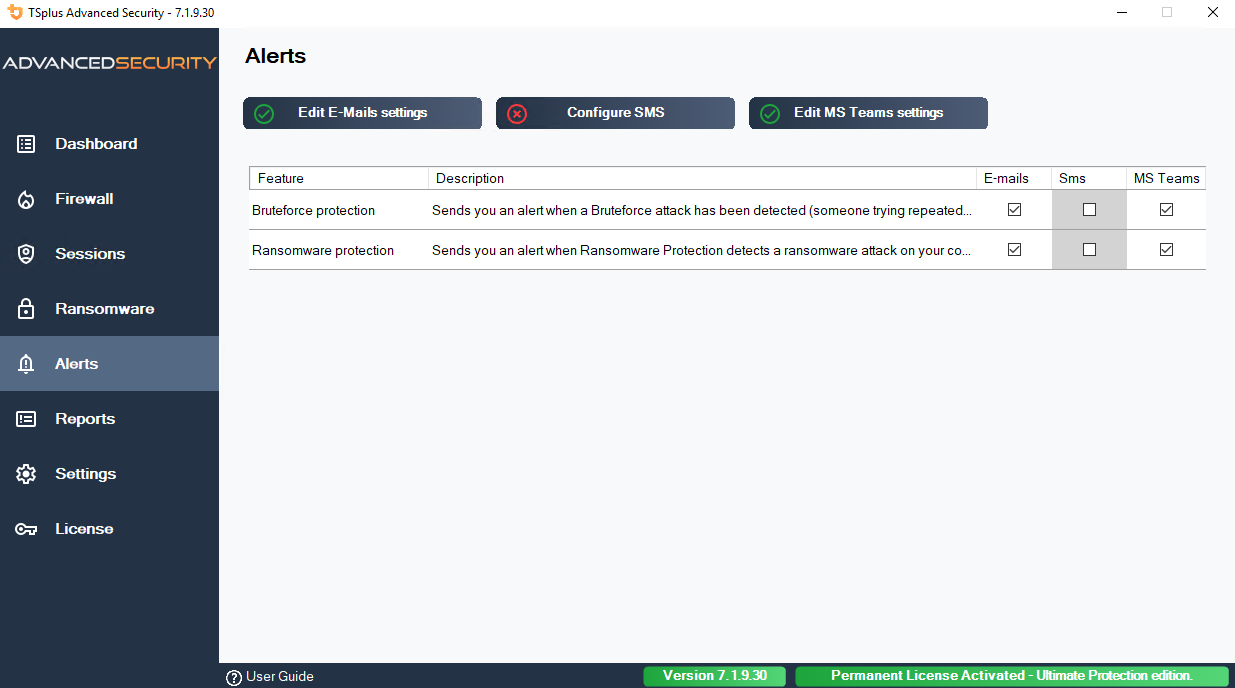
The Alerts page allows you to configure notifications sent by Advanced Security when specific security events occur. For each alert type, you can independently enable or disable notifications via Email, SMS (Twilio), and Microsoft Teams.
A valid SMTP configuration is required to enable email alerts. Click “Edit email sending settings” to configure your SMTP server. Similarly, SMS and Teams channels must be configured before they can be activated.
Available Alerts
| Alert | Description |
|---|---|
| Firewall Monitoring | Sends an alert when the Windows Firewall is found disabled while Advanced Security configuration expects it to be enabled. The service checks the firewall status periodically (every 5 minutes). |
| Service Monitoring | Sends an alert when the Advanced Security service stops. This allows administrators to be notified immediately if the protection service goes down unexpectedly. |
| Working Hours Restriction | Sends an alert when a user session is terminated because it falls outside the configured working hours. |
| Bruteforce Protection | Sends an alert when a bruteforce attack is detected (i.e. when a source IP address exceeds the maximum number of failed login attempts and is blocked). |
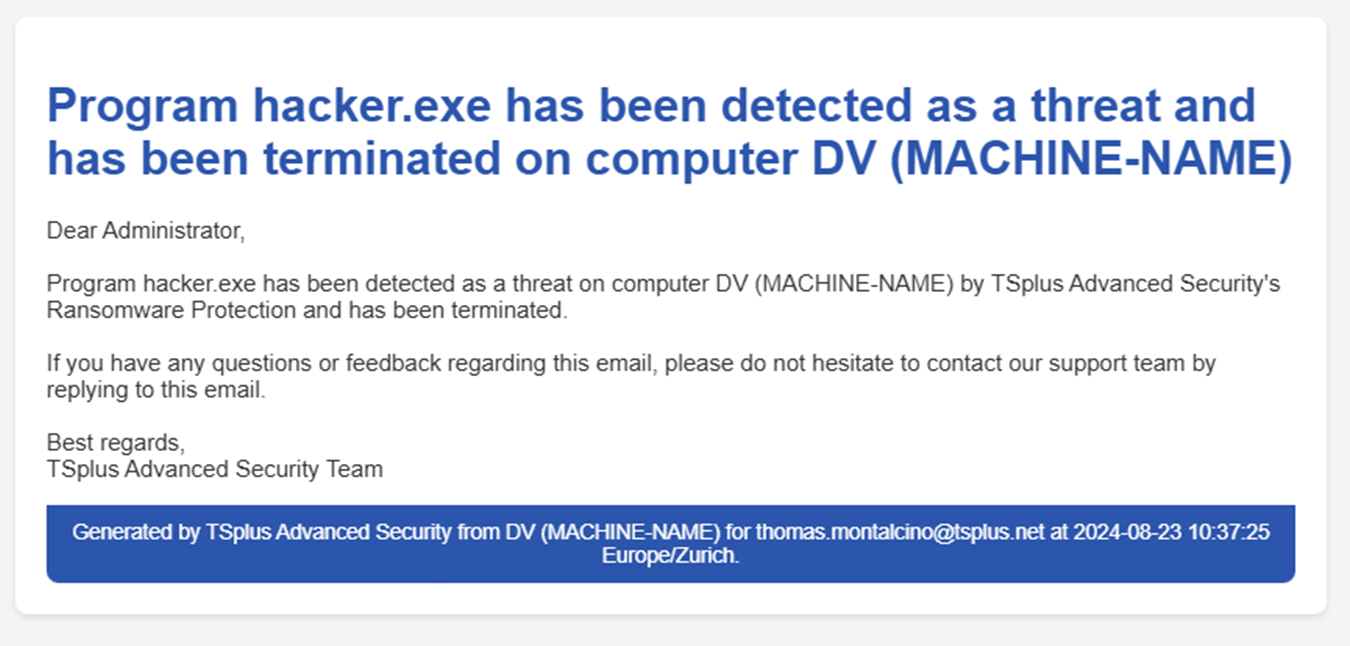
| Ransomware Protection | Sends an alert when the Ransomware Protection feature detects a ransomware attack on the server. |
Notification Channels
Edit email sending settings
Configure the SMTP server settings (server address, port, sender, recipient, authentication). A test email is sent to validate the configuration.
Configure SMS
Configure SMS notifications via Twilio (Account SID, Auth Token, phone numbers).
Edit MS Teams settings
Configure Microsoft Teams notifications by providing a webhook URL. See the instructions below to create a webhook workflow.
Create a Alert in Microsoft Teams.
The first thing to do is create a workflow in the Teams channel you want to send alerts to.
There are two ways to do this:
- in Power Automate (https://make.powerautomate.com/) > My Flows > New Flow
- directly in MS Teams; select the ”…” icon next to the channel you want to use, then “Workflows”
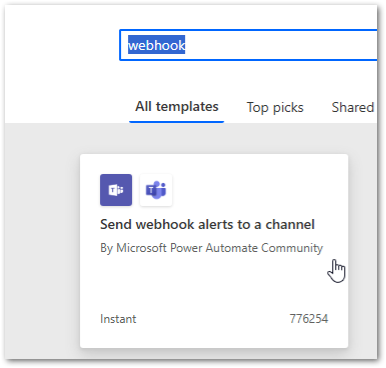
You can create a flow with an existing template; search for “webhook” and you’ll find “Send webhook alerts to a channel.”
Fill in the details (which channel to publish to). This is a little more convenient when creating the workflow directly from MS Teams.
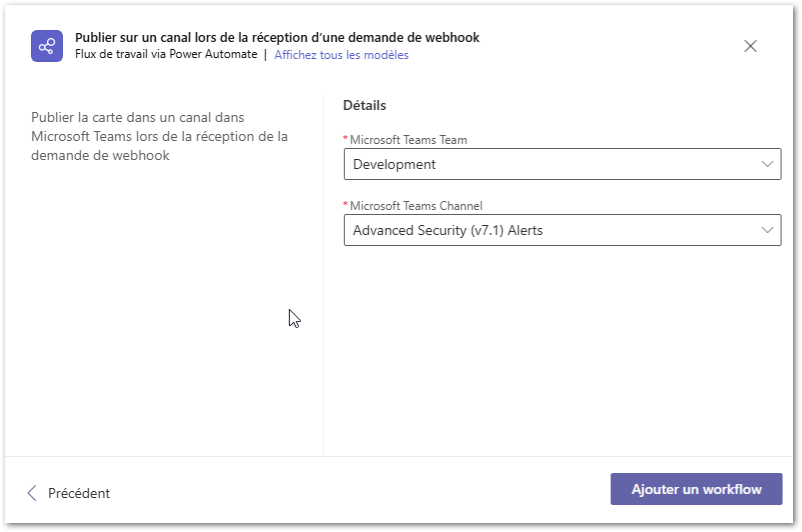
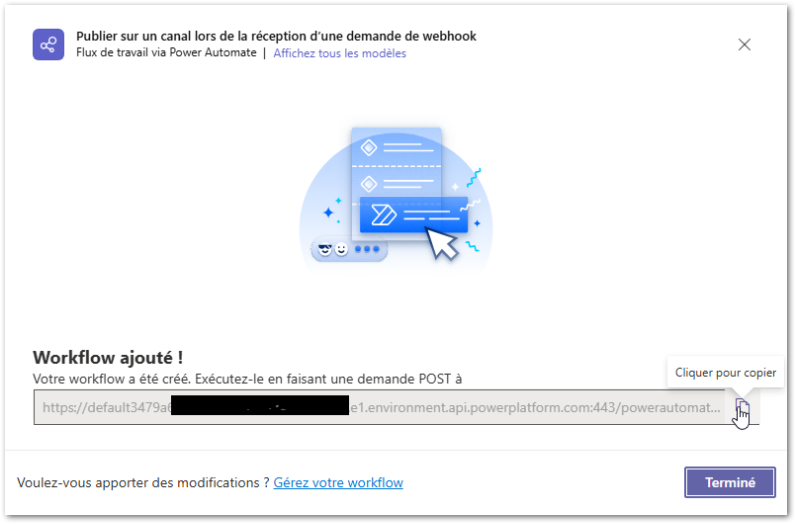
Copy the URL; this is the one you need to provide in Teams settings, in Advanced Security or Server Monitoring.
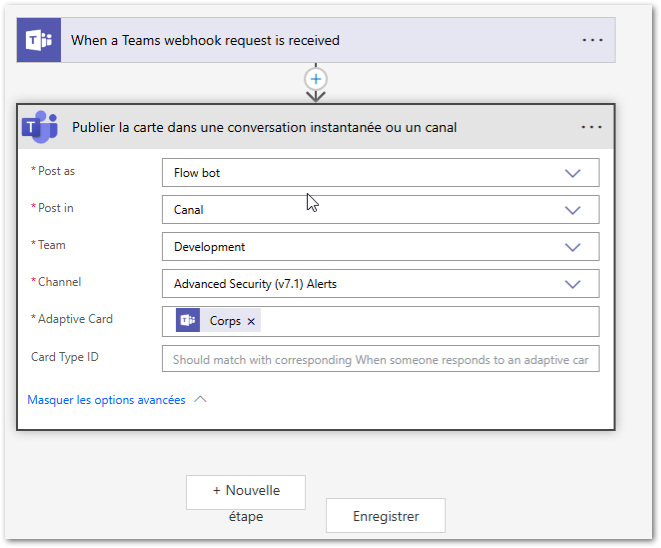
Finally, edit the flow you just created, remove the “Send every Adaptive Card” option, and replace it with the following component:
(before editing)
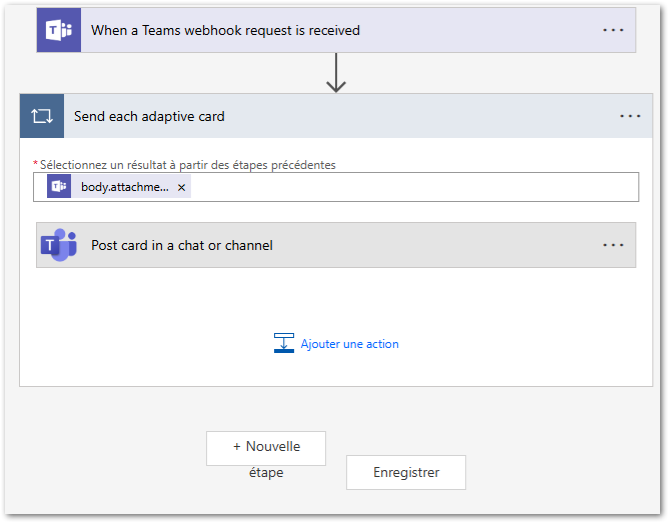
(after editing)