Activating your support license
The 15 version of TSplus introduced a new and easy way to handle your annual support contract.
Support subscription is available for perpetual licenses only. Subscription licenses include updates.
The support services include our worldwide Ticket/Email support service, Forum access, license rehosting, FAQ and tutorial support.
The Update Services include the delivery of Update codes, the right to install and to use any new release, patch and updates.
We are investing every day to enhance TSplus and to fix all known issues. So, we recommend all our customers to keep their TSplus installation updated. The annual fee is not expensive and is available on our Store Page.
Activating your support
Step One
Locate the Admin Tool on your desktop :

Double-click on it, then click on the license tile.
- If you cannot find the admin tool shortcut, it should be located in the desktop folder on the administrator account used to download TSplus. You can also find the TSplus folder on this path: ‘C:\Program Files (x86)\TSplus\UserDesktop\files’.
Click on the License tab You can now see the serial number:
Step Two
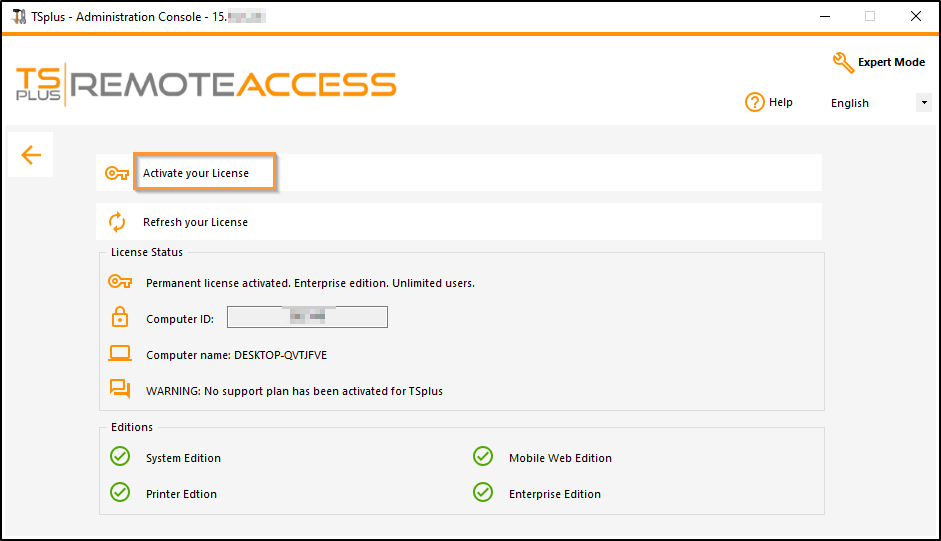
Click on the “Activate your license” tile and enter your Activation Key
Step Three
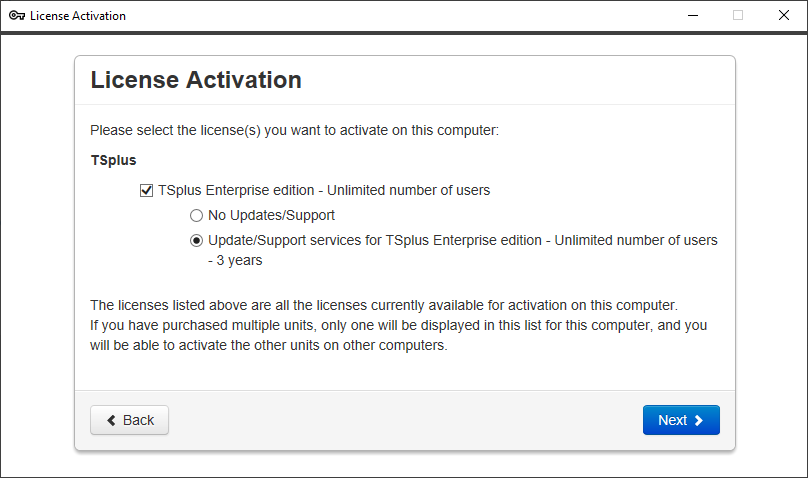
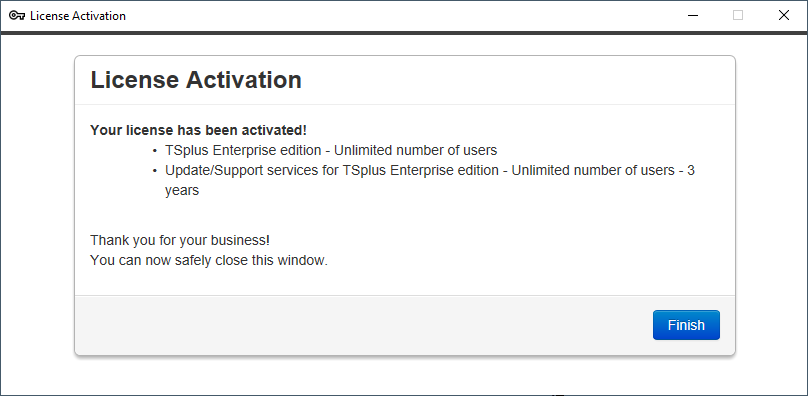
Then select “Extend Support period”:
Extend an Update/Support subscription
Access your license portal:
https://license.tsplus.net/login
ID: “Purchase email address”
Password: “Purchase order number of your choice”
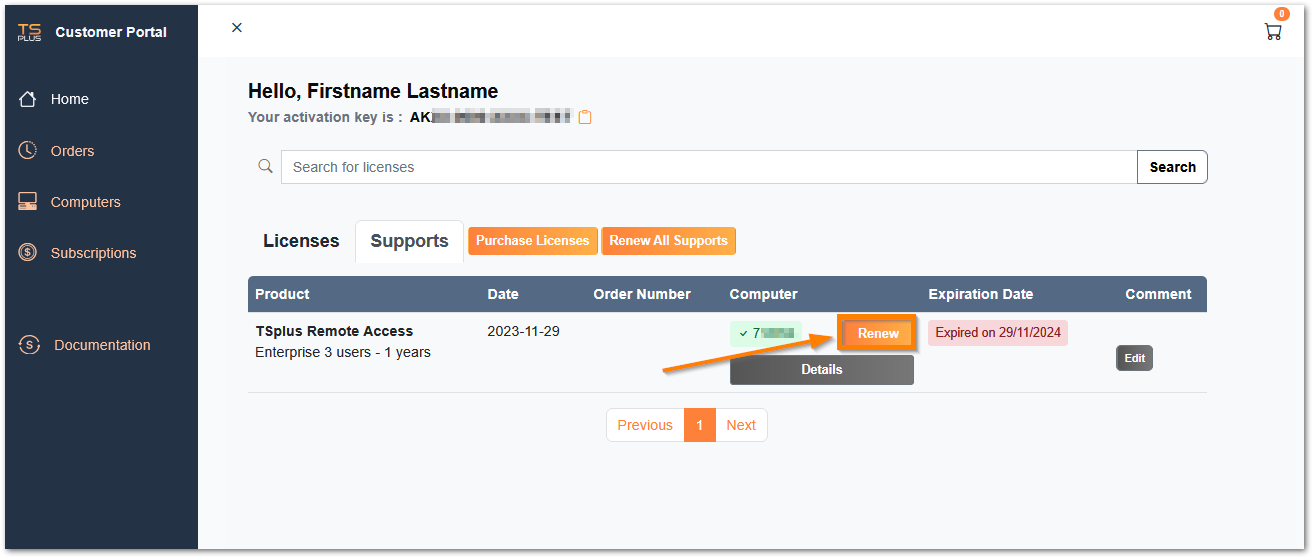
Then go to the Support tab and enter your computer ID (visible from the License tab of the AdminTool).
Then click the “Renew” button to choose the 1, 2, or 3-year support duration.
If you don’t have a support subscription for a license,
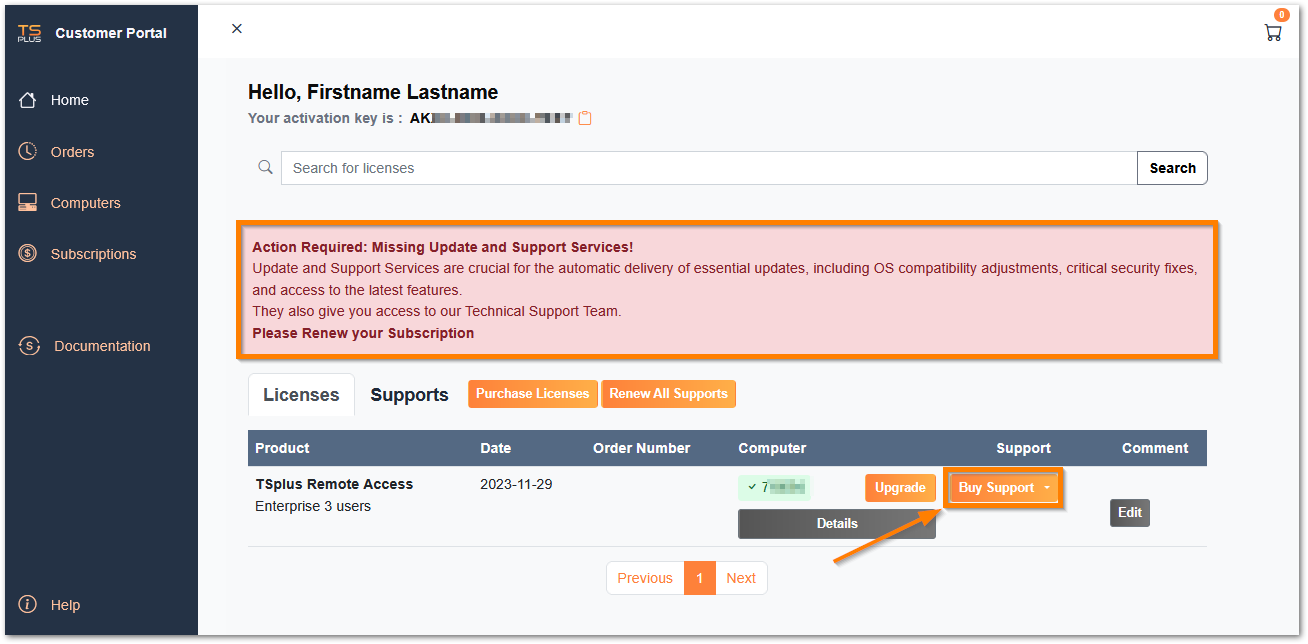
A message will appear on the license tab saying
”Action Required: Missing Update and Support Services!”
You can purchase your support subscription directly by clicking the “BUY SUPPORT” button.
Renewal Options and Limits
The renewal period is limited to 3 years, based on today’s date.
When renewing, you have two options:
- Option 1: Renew starting today for 1, 2, or 3 years.
(Note: If you still have a subscription period remaining, the renewal price will be adjusted to the end date, taking your current subscription into account.)
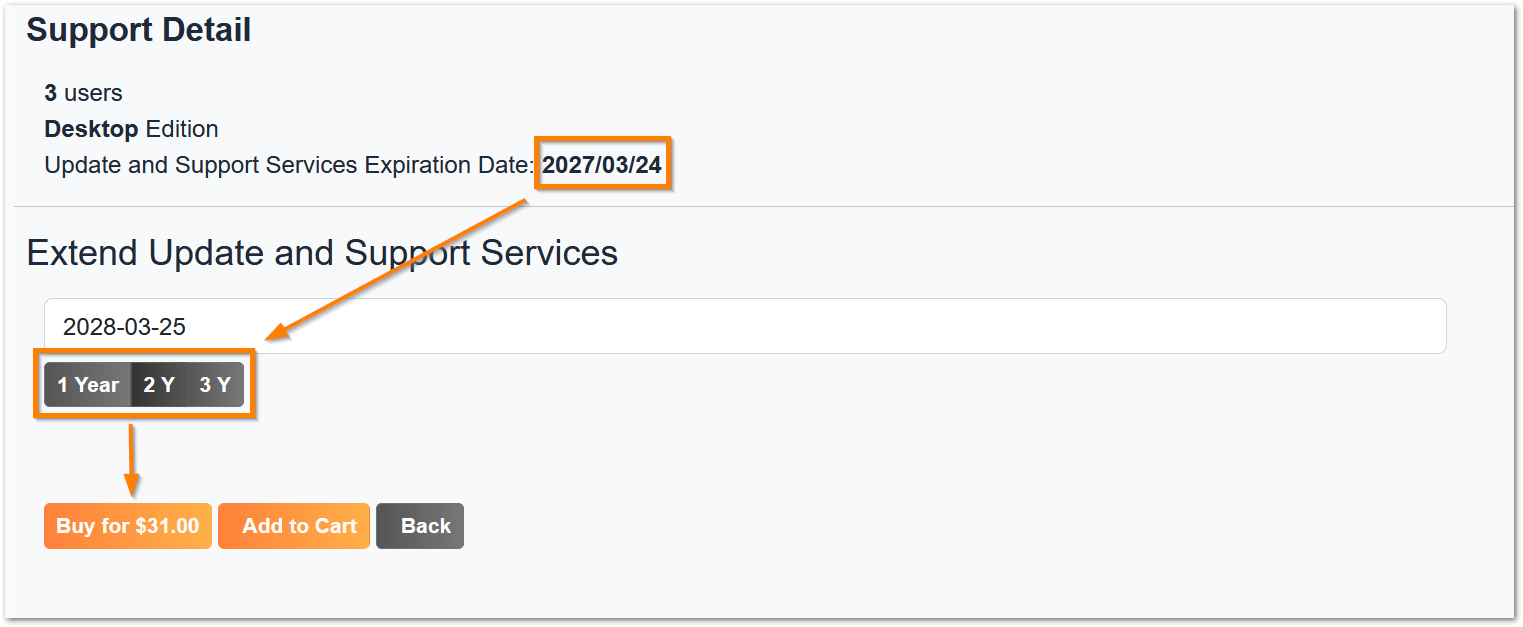
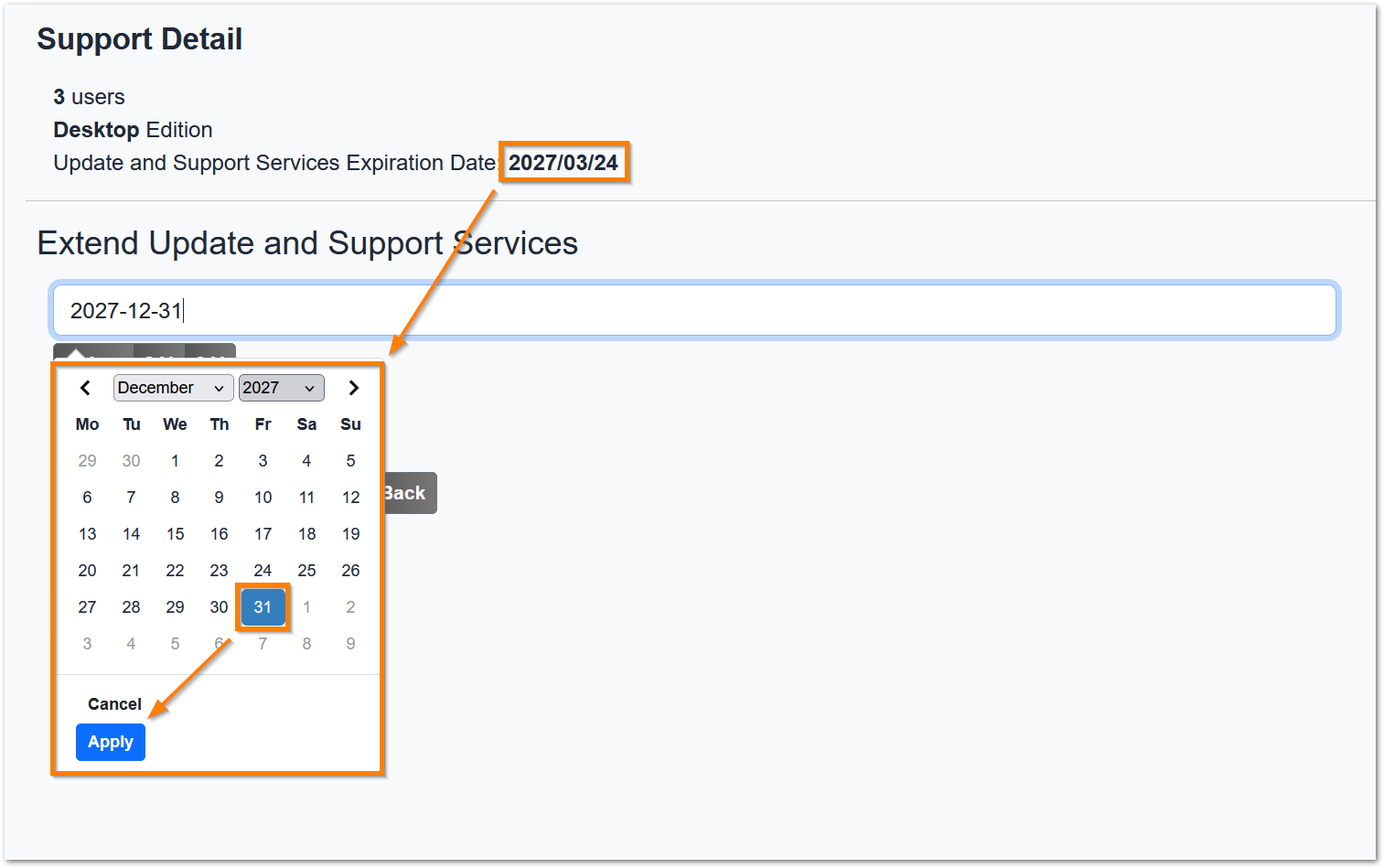
- Option 2: You can manually enter the end date by clicking in the date field and selecting the desired end date.
This is useful if you want to standardize the end date of all your subscriptions, for example, to December 31st.
(Note: The renewal price will be adjusted to the end date, taking your current subscription into account.)