

Webhook Delivery Tracking
Overview
Every webhook delivery attempt is recorded, so you can find out why an event failed to reach your endpoint and retry it — without contacting support.
This history is available directly from the Webhooks page in the admin console, below your list of configured endpoints.
See Webhooks Integration for how to configure a webhook endpoint and understand the payload format.
Accessing the delivery history
-
Open the TSplus Remote Support admin console.
-
In the left menu, expand Integration and click Webhooks.
-
Scroll down below your list of endpoints to the Delivery history section.
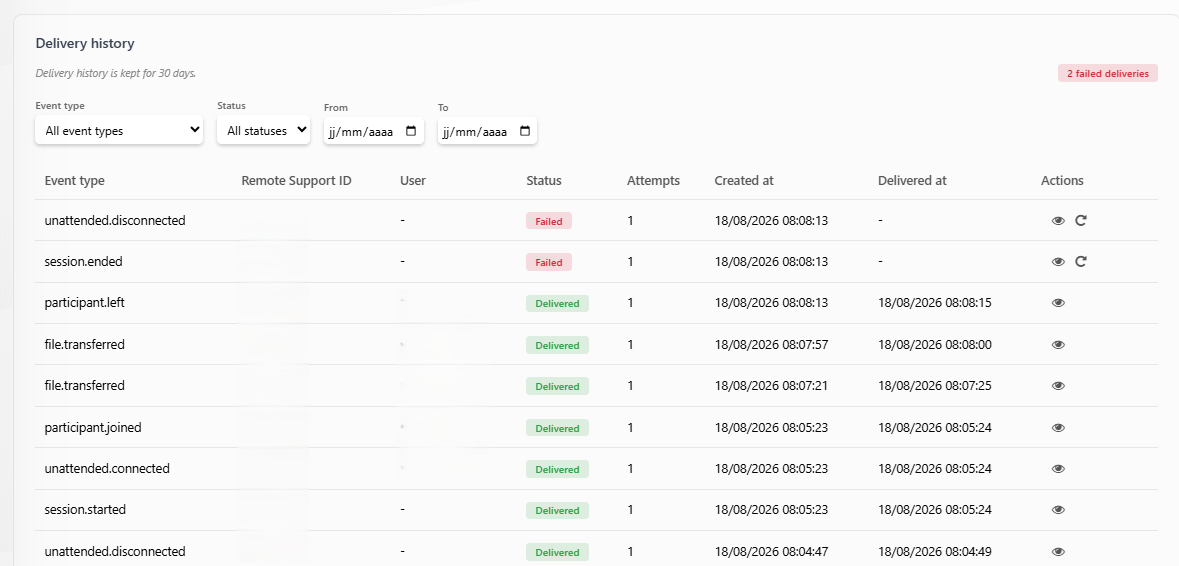
A short note above the table reminds you that delivery history is kept for 30 days — events older than that are automatically purged and no longer shown here.
Filtering deliveries
You can narrow down the list using:
- Event type — filter on a single event type (e.g.
session.ended). - Status —
Pending,Delivered,Failed, orCancelled. - From / To — a date range. Since history is only kept for 30 days, the date pickers do not let you select a period further back than that.
Filters apply automatically as soon as you change a value — there is no separate “Apply” button.

For each event, the table also shows the associated Remote Support ID and user name when that information is available for the event type.
Understanding delivery status
| Status | Meaning |
|---|---|
| Pending | The event is queued and waiting to be sent, or waiting for its next retry. |
| Delivered | Your endpoint answered with a 2xx status code. |
| Failed | All retry attempts were exhausted, or your endpoint returned a non-retryable error (a 4xx status code other than 429). |
| Cancelled | The event was not sent because its endpoint was deleted or disabled before delivery. |
A failed deliveries count is shown above the table so you can spot problems at a glance.
Viewing delivery attempt details
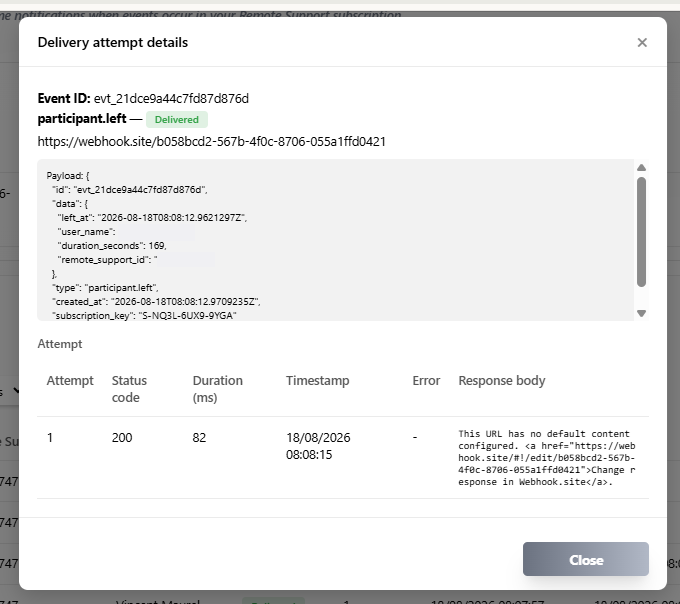
Click the eye icon on any event to see its full delivery history:
- The HTTP status code returned by your endpoint (or the connection error, if none was received).
- The (truncated) response body.
- The duration of the attempt.
- The timestamp of each attempt made so far.
Retrying a failed delivery
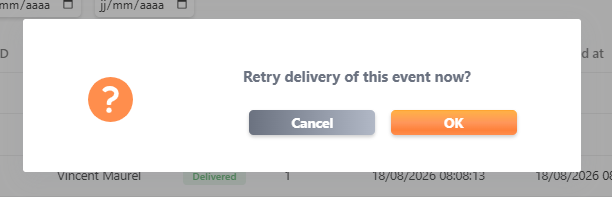
For any event with a Failed status, a replay icon is available both in the table and in the detail view. Clicking it re-queues the event for immediate delivery, using the same payload that was originally generated — you don’t need to reproduce the original action (session, file transfer, etc.) to test a fix on your endpoint.
See Delivery and retries for the automatic retry schedule that applies before an event is marked as failed.